


Dolphin Anty & ProxyGen for Multi-Account Management
How to set up ProxyGen residential and mobile proxies inside the Dolphin Anty antidetect browser for multi-account management: profile creation, bulk proxy import, fingerprint checks, sticky vs rotating sessions, and account-health best practices.
%22%2F%3E%3Ccircle%20cx%3D%2273%22%20cy%3D%2236%22%20r%3D%22130%22%20fill%3D%22url(%23glow)%22%2F%3E%3Ccircle%20cx%3D%22255%22%20cy%3D%22232%22%20r%3D%22110%22%20fill%3D%22url(%23glow)%22%2F%3E%3Cg%20stroke%3D%22%234fd1a8%22%20stroke-width%3D%221%22%20opacity%3D%220.35%22%3E%3Cline%20x1%3D%22327%22%20y1%3D%22163%22%20x2%3D%22131%22%20y2%3D%22150%22%2F%3E%3Cline%20x1%3D%22327%22%20y1%3D%22163%22%20x2%3D%2298%22%20y2%3D%22216%22%2F%3E%3Cline%20x1%3D%22327%22%20y1%3D%22163%22%20x2%3D%22253%22%20y2%3D%2248%22%2F%3E%3Cline%20x1%3D%22131%22%20y1%3D%22150%22%20x2%3D%2298%22%20y2%3D%22216%22%2F%3E%3Cline%20x1%3D%22131%22%20y1%3D%22150%22%20x2%3D%22158%22%20y2%3D%22217%22%2F%3E%3Cline%20x1%3D%2298%22%20y1%3D%22216%22%20x2%3D%2277%22%20y2%3D%22104%22%2F%3E%3Cline%20x1%3D%2298%22%20y1%3D%22216%22%20x2%3D%22314%22%20y2%3D%2277%22%2F%3E%3Cline%20x1%3D%2298%22%20y1%3D%22216%22%20x2%3D%22158%22%20y2%3D%22217%22%2F%3E%3Cline%20x1%3D%2298%22%20y1%3D%22216%22%20x2%3D%22253%22%20y2%3D%2248%22%2F%3E%3Cline%20x1%3D%2277%22%20y1%3D%22104%22%20x2%3D%2240%22%20y2%3D%22200%22%2F%3E%3C%2Fg%3E%3Cg%20fill%3D%22%234fd1a8%22%20opacity%3D%220.9%22%3E%3Ccircle%20cx%3D%22327%22%20cy%3D%22163%22%20r%3D%225%22%2F%3E%3Ccircle%20cx%3D%22131%22%20cy%3D%22150%22%20r%3D%227%22%2F%3E%3Ccircle%20cx%3D%2298%22%20cy%3D%22216%22%20r%3D%226%22%2F%3E%3Ccircle%20cx%3D%2277%22%20cy%3D%22104%22%20r%3D%227%22%2F%3E%3Ccircle%20cx%3D%22314%22%20cy%3D%2277%22%20r%3D%225%22%2F%3E%3Ccircle%20cx%3D%2240%22%20cy%3D%22200%22%20r%3D%227%22%2F%3E%3Ccircle%20cx%3D%22158%22%20cy%3D%22217%22%20r%3D%225%22%2F%3E%3Ccircle%20cx%3D%22253%22%20cy%3D%2248%22%20r%3D%224%22%2F%3E%3C%2Fg%3E%3C%2Fsvg%3E)
Proxies are used to hide your digital identity. However, proxies alone are often not enough, so additional anonymity tools are required. One of the most effective solutions is an anti-detect browser.
Unlike a proxy, an anti-detect browser does not hide your IP address. Instead, it masks the combination of parameters that websites use to identify your browser.
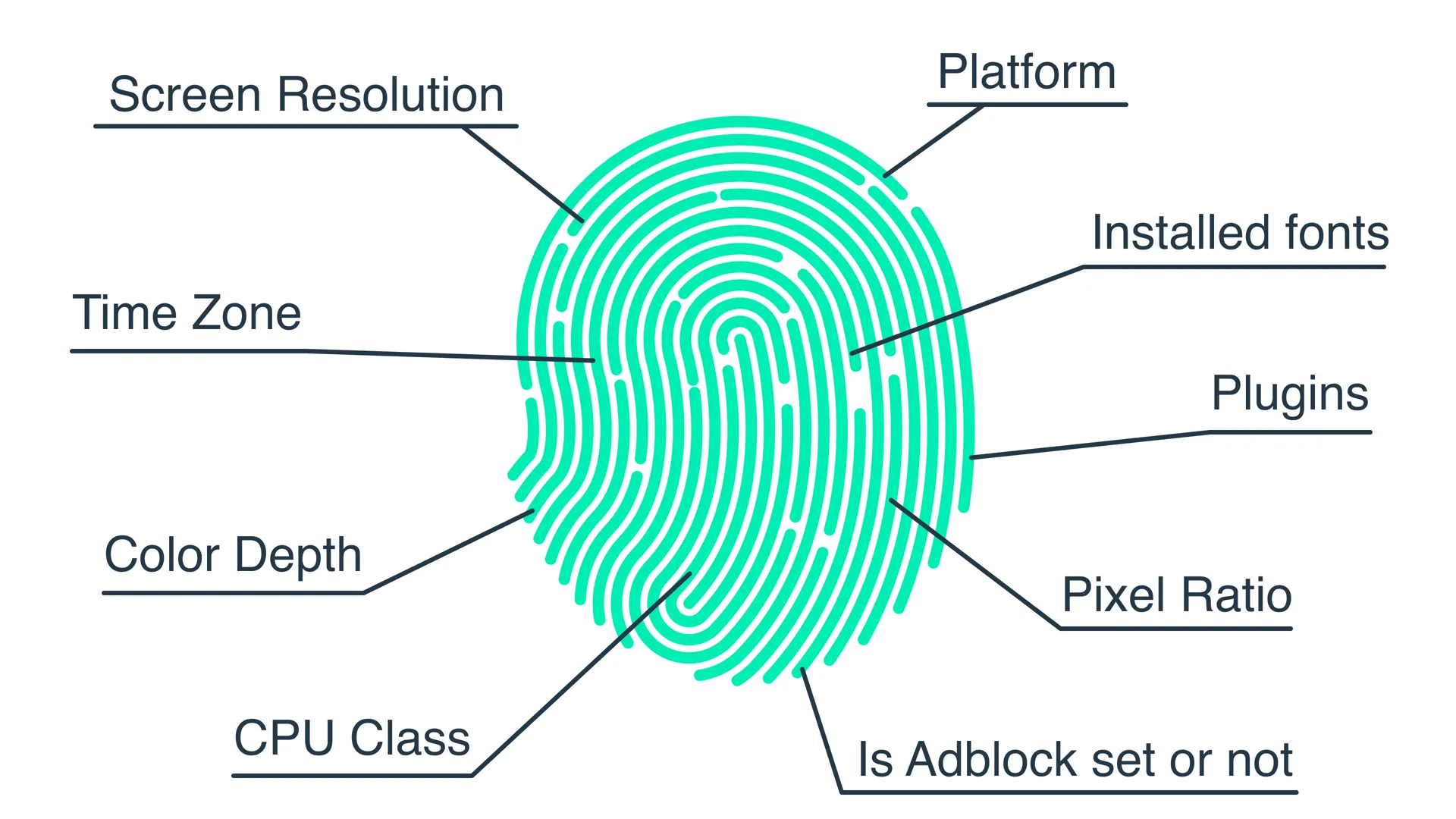
Websites identify users based on these and many other parameters.
To manage multiple accounts safely, you need to know how to use an anti-detect browser and integrate proxies into it. Let's walk through the entire process using Dolphin Anty as an example.
Why Dolphin Anty?
First, Dolphin Anty has received numerous positive reviews across various online communities, especially among media buyers. Second, one of its key features is the use of real browser fingerprints. Instead of generating fingerprints artificially, it uses fingerprints based on real user data, selecting the closest match according to your proxy and operating system.
Getting started with Dolphin Anty
To get started, download the software from the official Dolphin website.
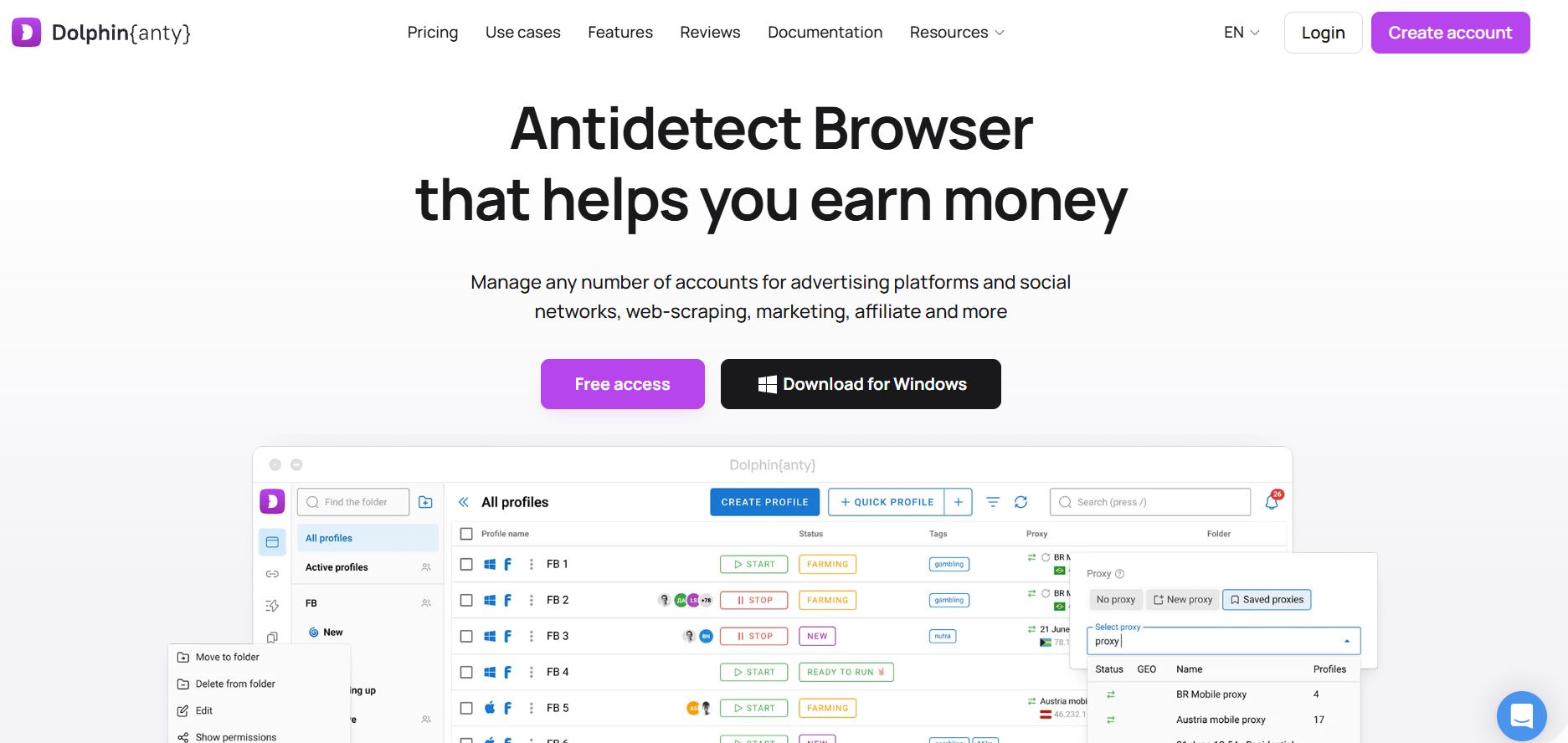
After installing it, complete the registration process. The free plan supports up to five browser profiles, making it suitable for getting familiar with the platform. If you decide to upgrade, you can use the promo code PROXYGEN20.The foundation of any anti-detect browser is the browser profile (BP). Each profile functions as a separate browser where you work with an account as if you were a different user with a different digital environment.
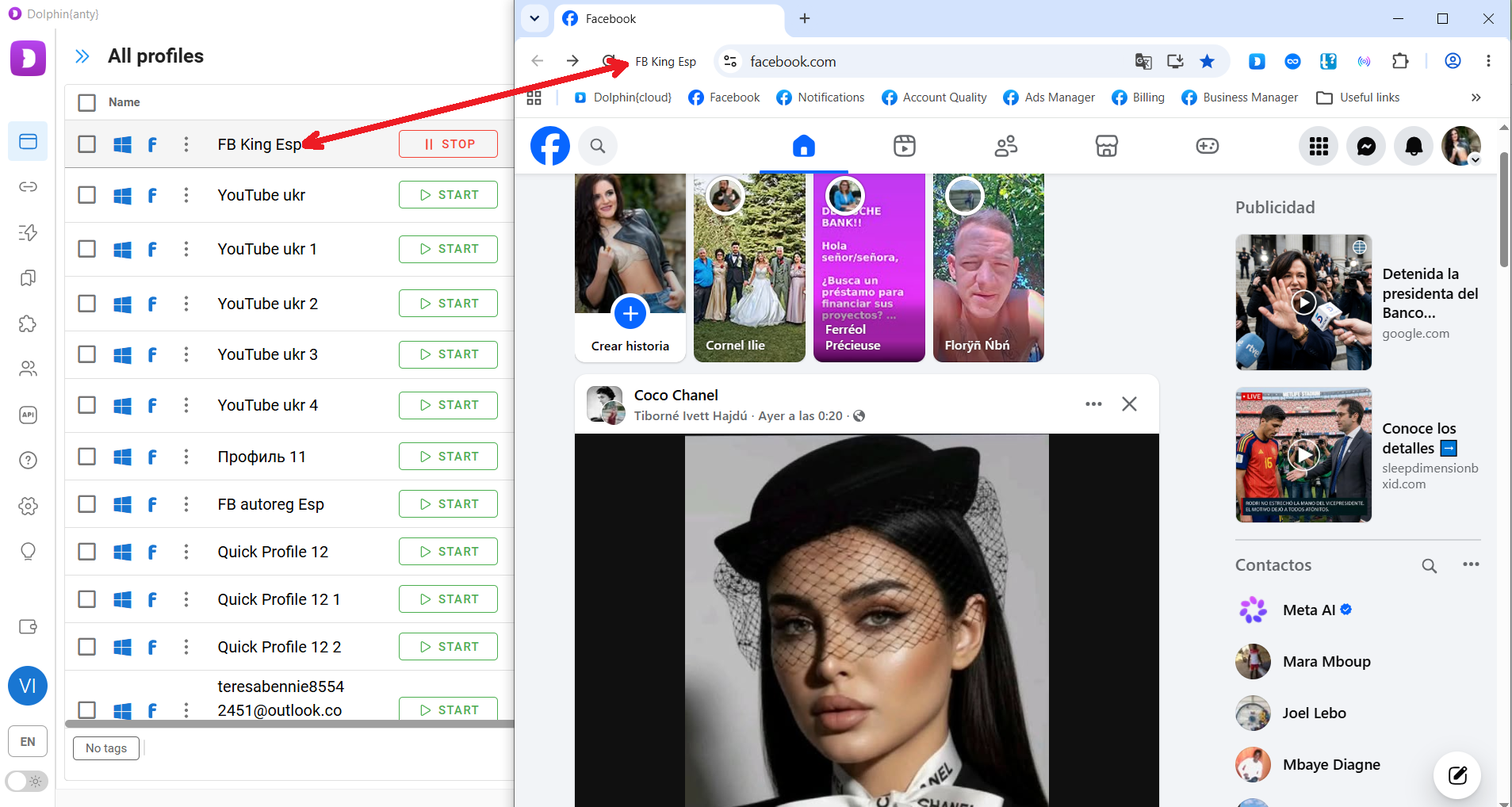
From a website's perspective, one browser profile is completely separate from both you and your other profiles.
The basic workflow consists of three steps:
- Create a browser profile;
- Configure it;
- Check the quality of its fingerprint.
Creating a browser profile
Click "Create profile" to begin. This opens the profile creation and editing window, where you'll need to select your operating system and add a proxy.
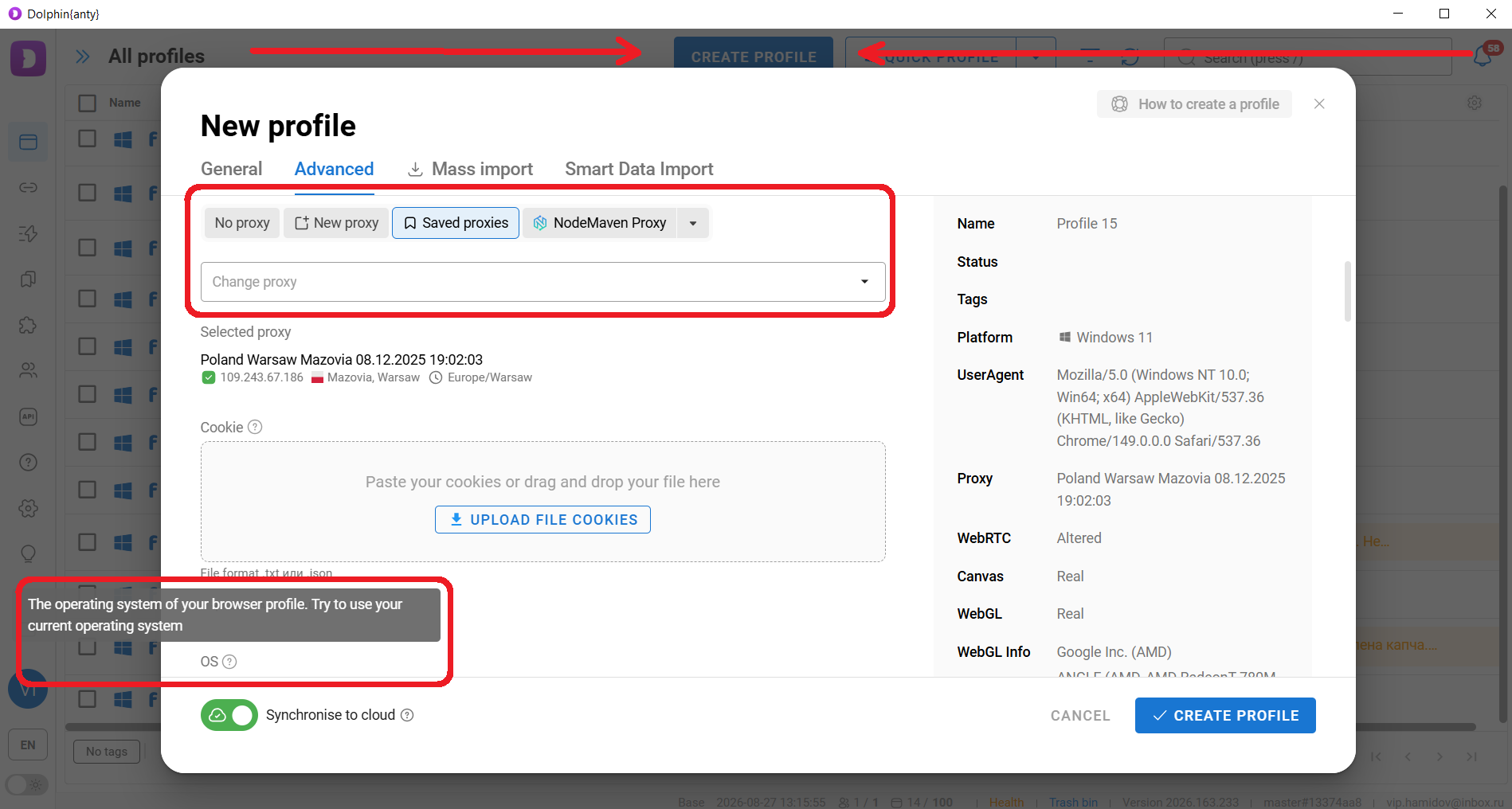
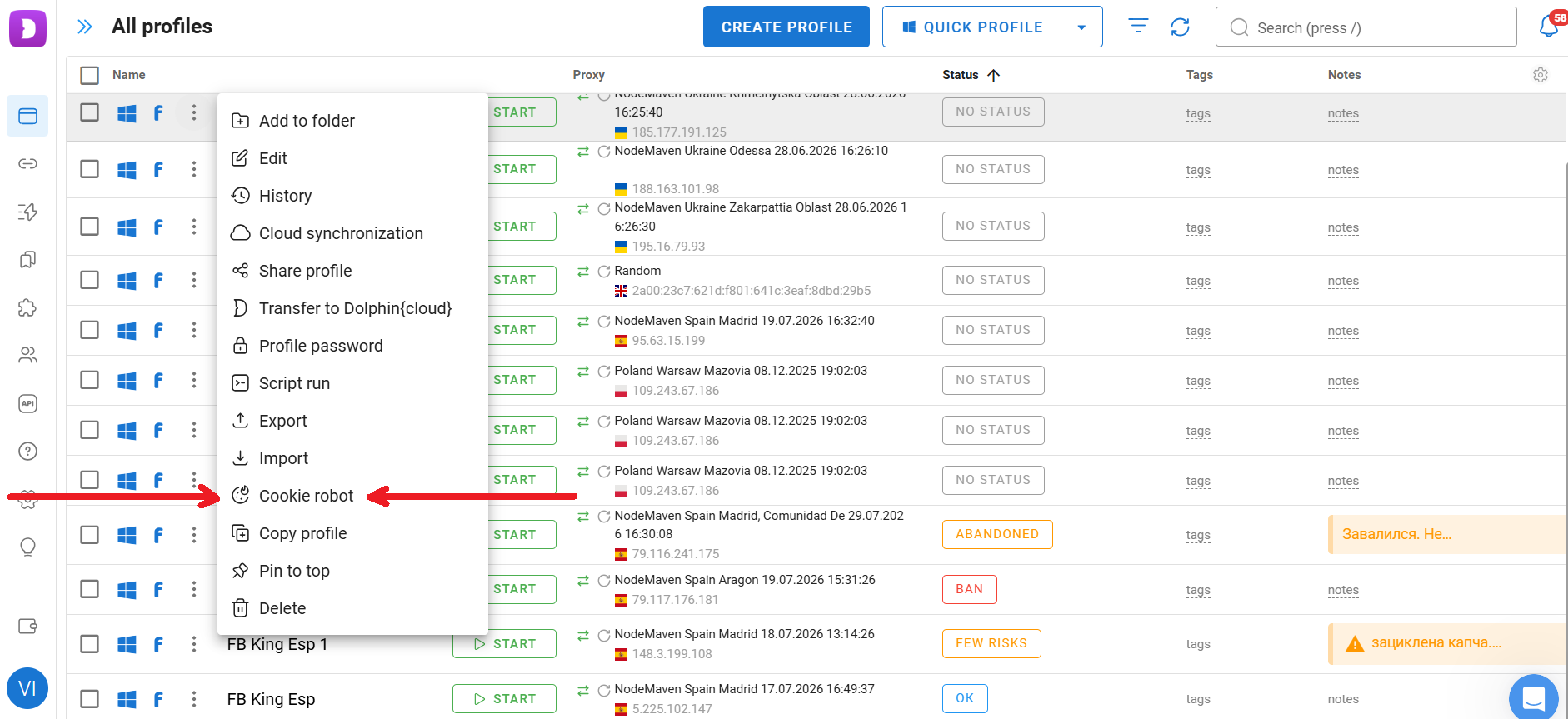
It's also recommended to add cookies by either uploading a cookie file or pasting the cookie data directly. If you don't have cookies yet, you can generate a browsing history later using Dolphin Anty's built-in Robot.
Adding proxies
First, register with ProxyGen, top up your balance, and purchase traffic. Then choose the proxy type and the preferred port generation format.
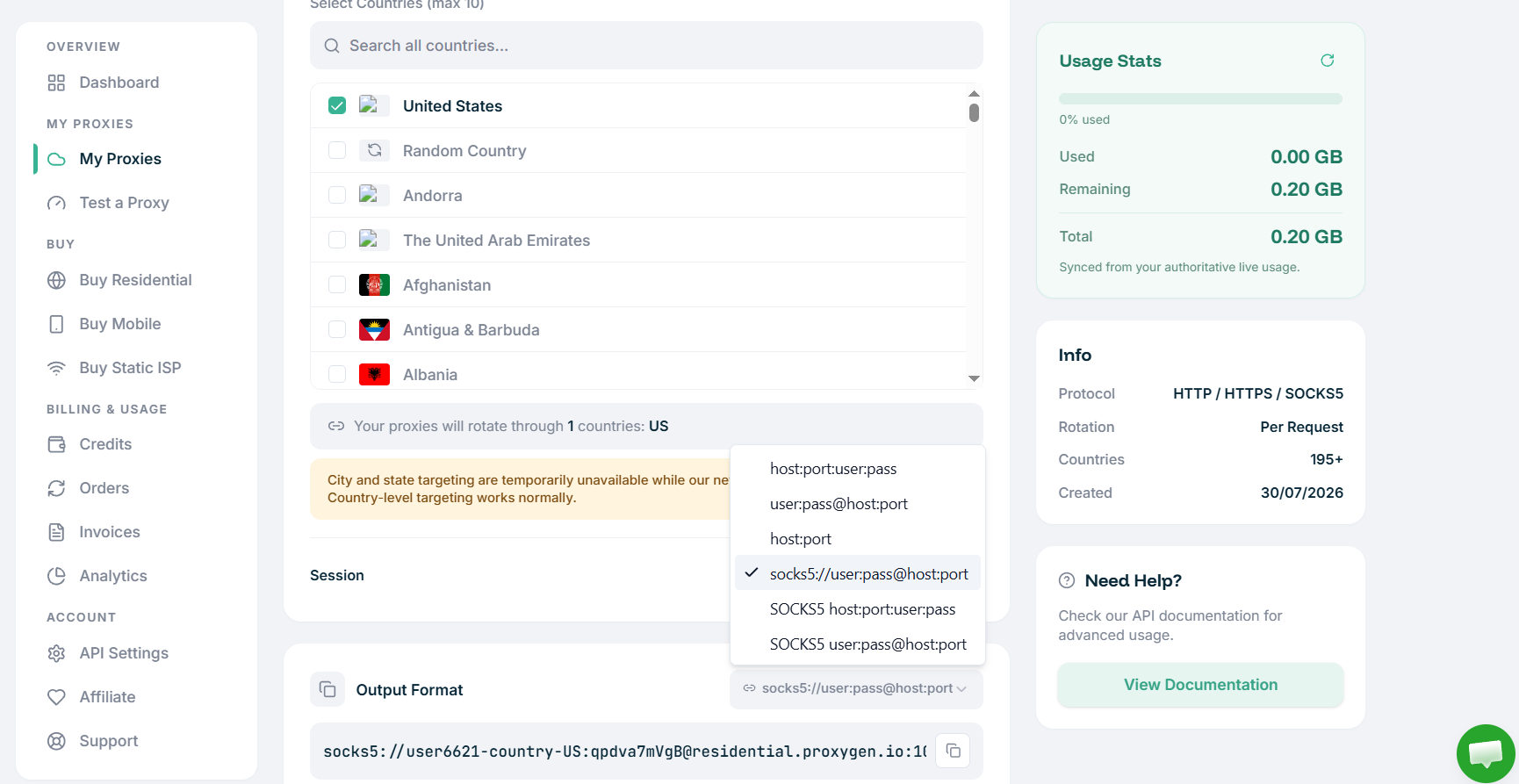
Once you've done that, you can add the proxies to Dolphin Anty. There are three ways to do this.
The first option is to add them to the built-in Proxy Manager.
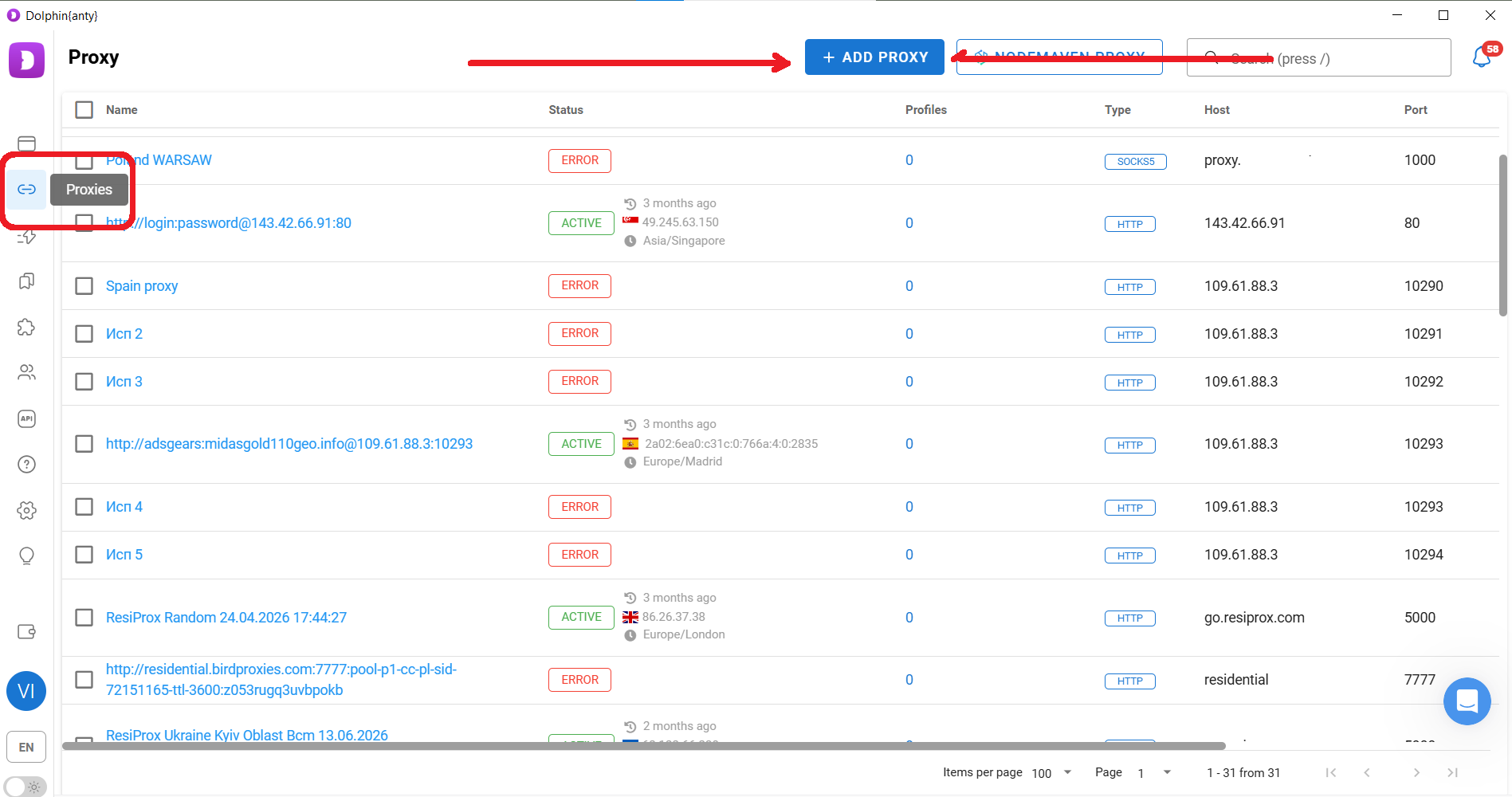
Although proxies can be added one by one, it's much more convenient to import them in bulk. For example, if you need ten proxies, generate ten proxy ports first, copy them, click "Add proxy", and paste the entire list at once.
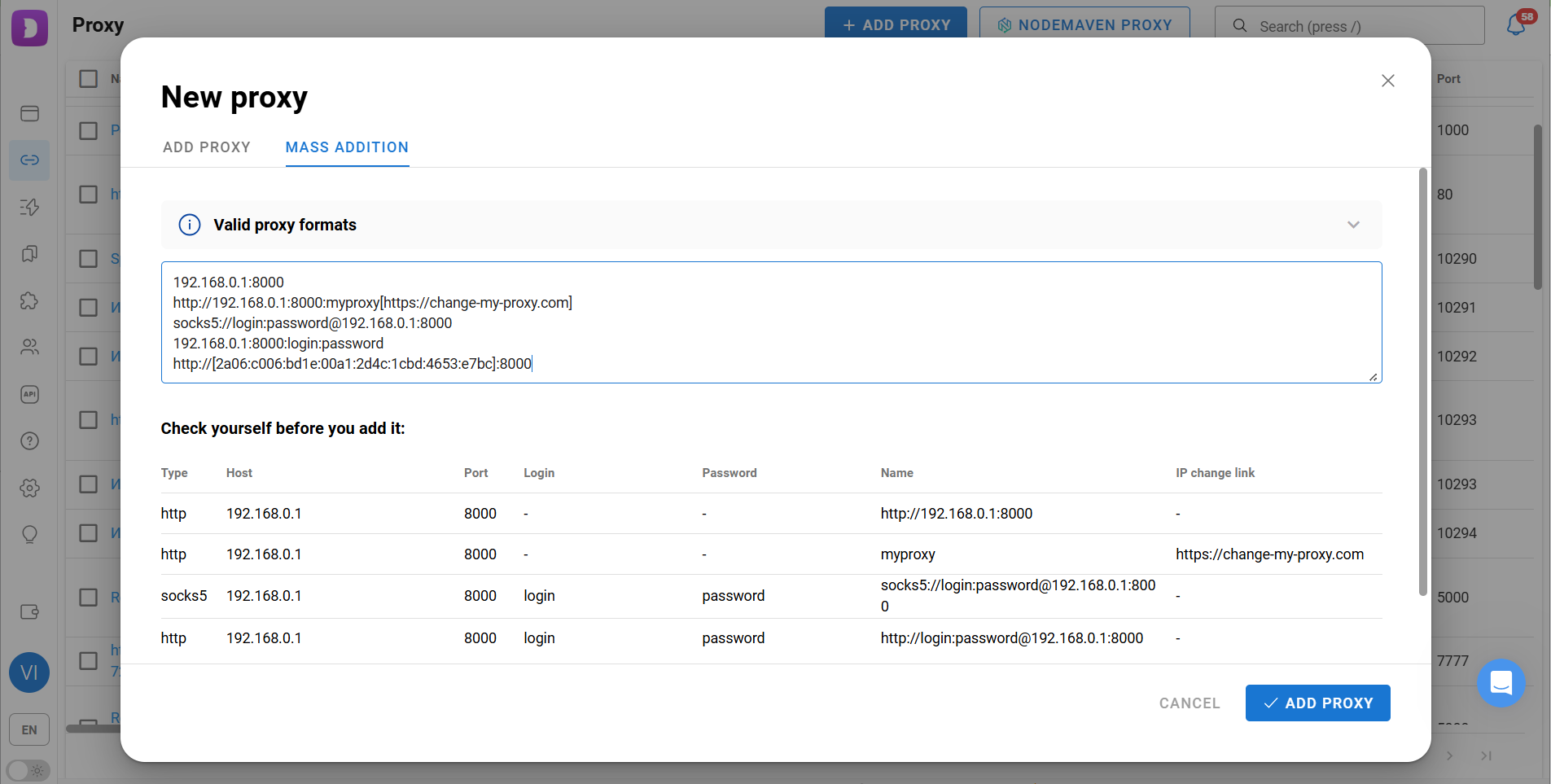
After importing the proxies, select them and click "Check connection" to make sure they're working properly.
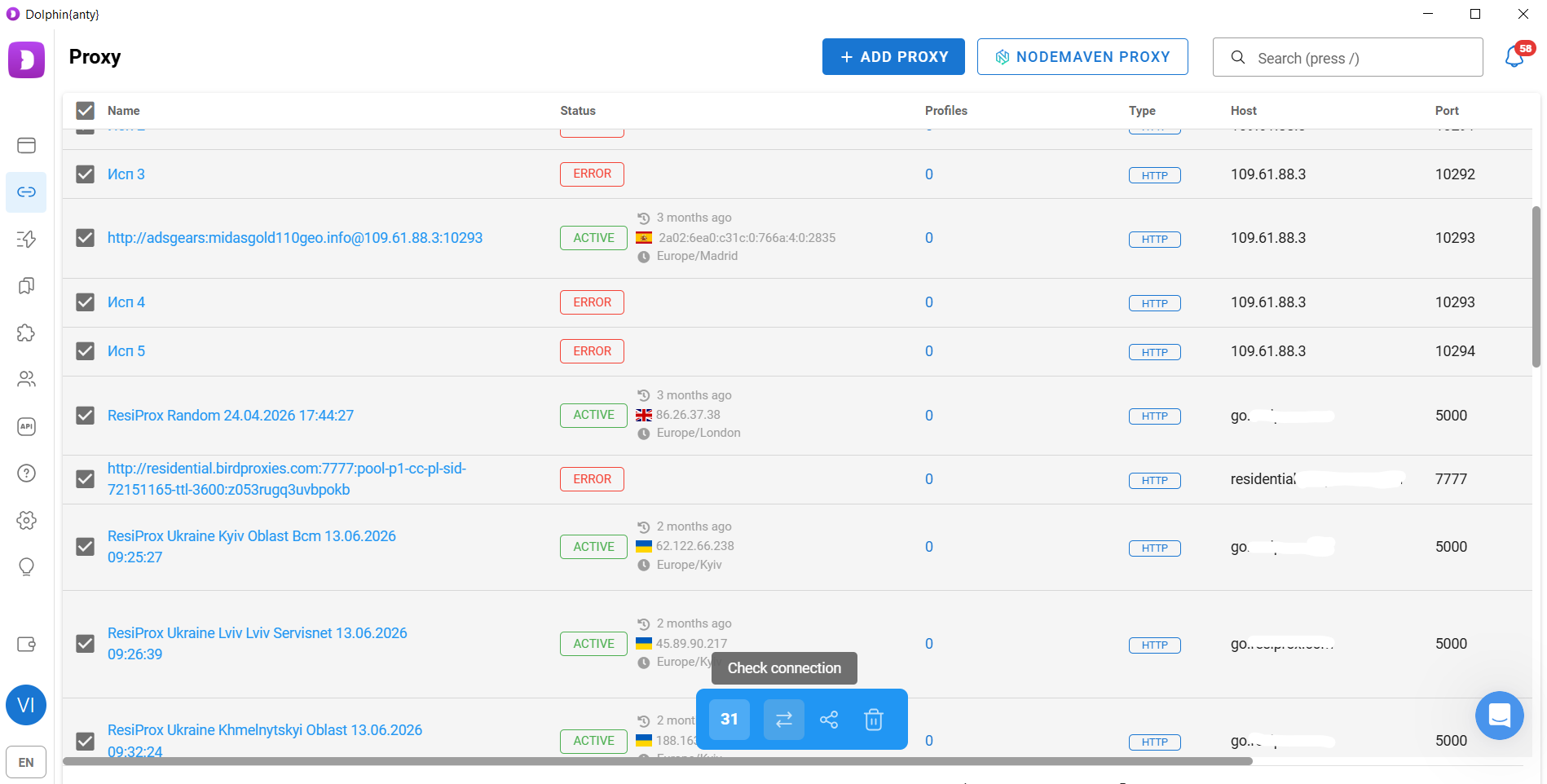
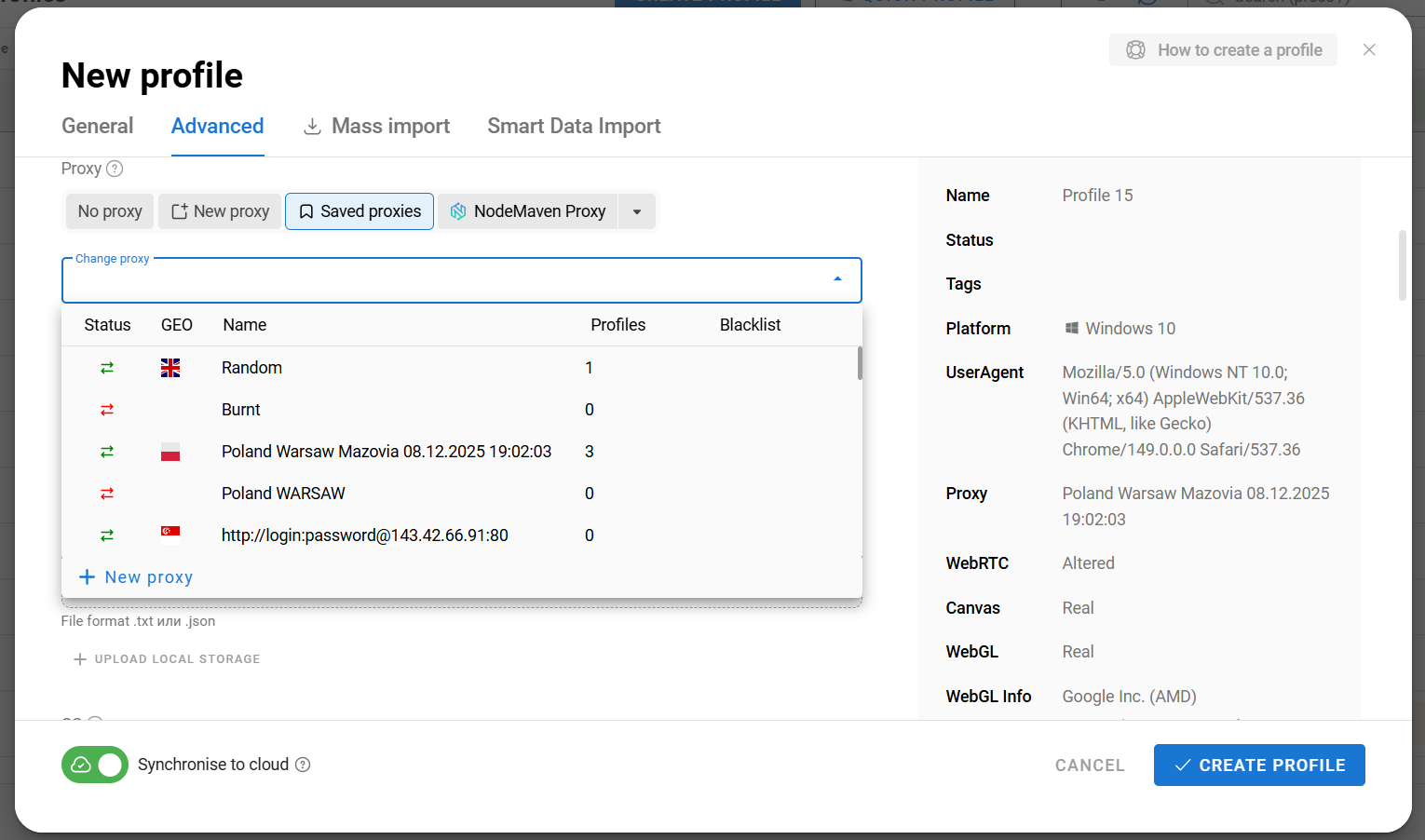
The imported proxies will then appear in the "Saved proxies" list, where you can select a proxy and assign it to a browser profile directly during profile creation.
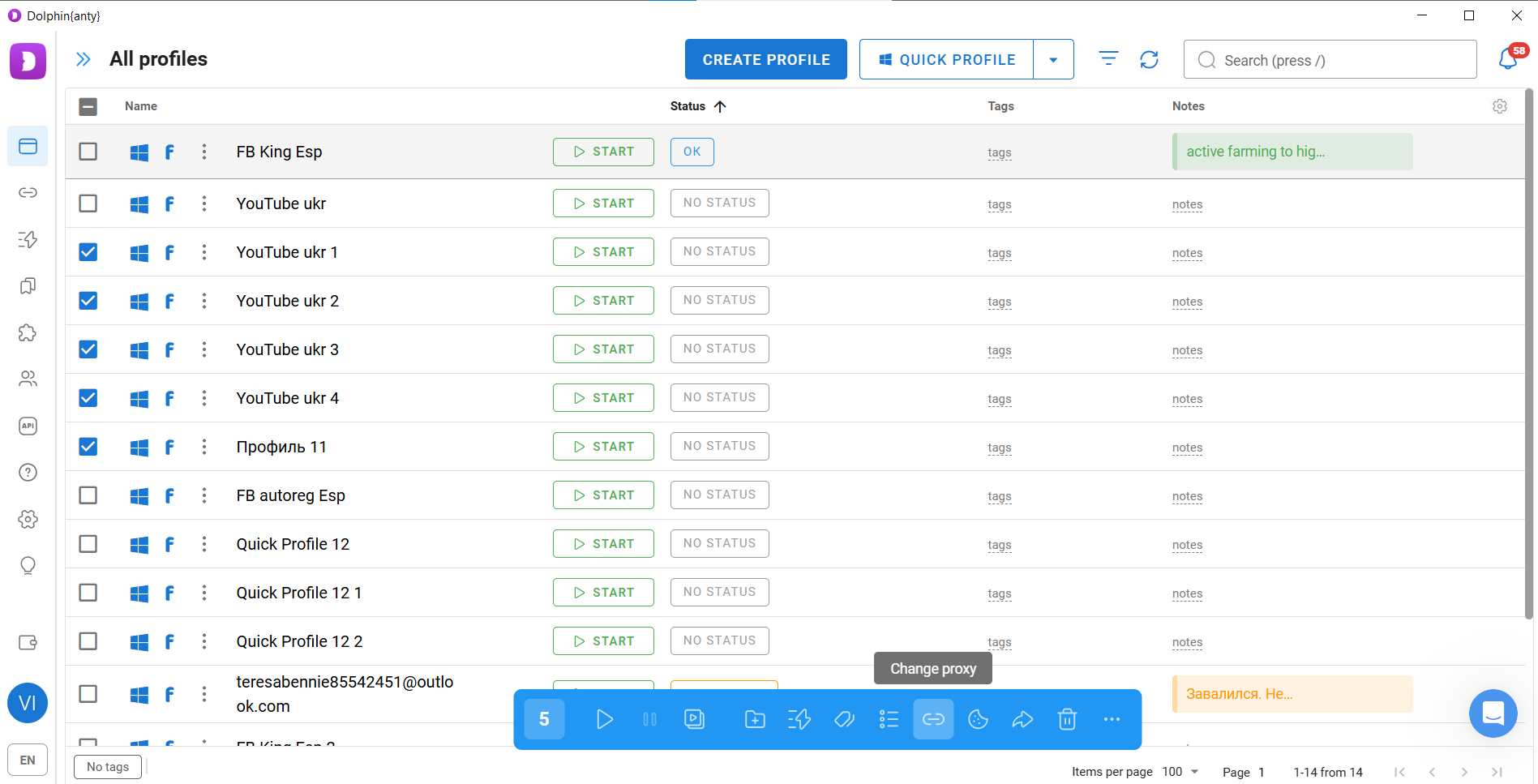
The second option is to assign proxies in bulk to existing browser profiles. Select the browser profiles, click "Change proxy", then open "New proxy" → "Mass addition" and paste the copied proxy list.
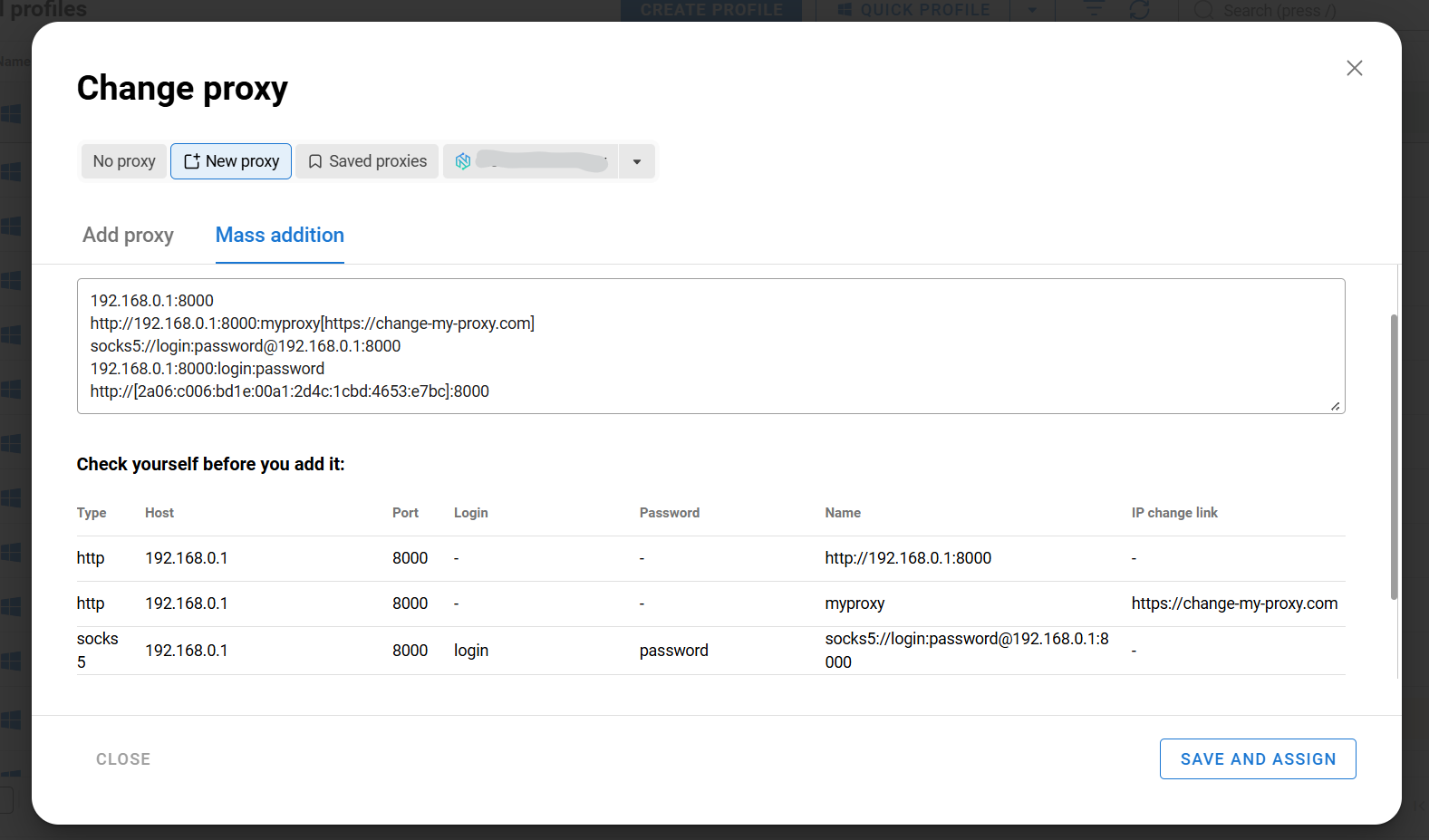
Click "Save and assign", and Dolphin Anty will automatically distribute the proxies across the selected browser profiles. You can choose how they're assigned—for example, one proxy per profile or one proxy shared across multiple profiles.
The third option is to add a proxy individually while creating a browser profile. During profile creation, open the "New proxy" tab and paste the proxy port into the appropriate field. Dolphin Anty will automatically check the connection and display the proxy location and time zone.
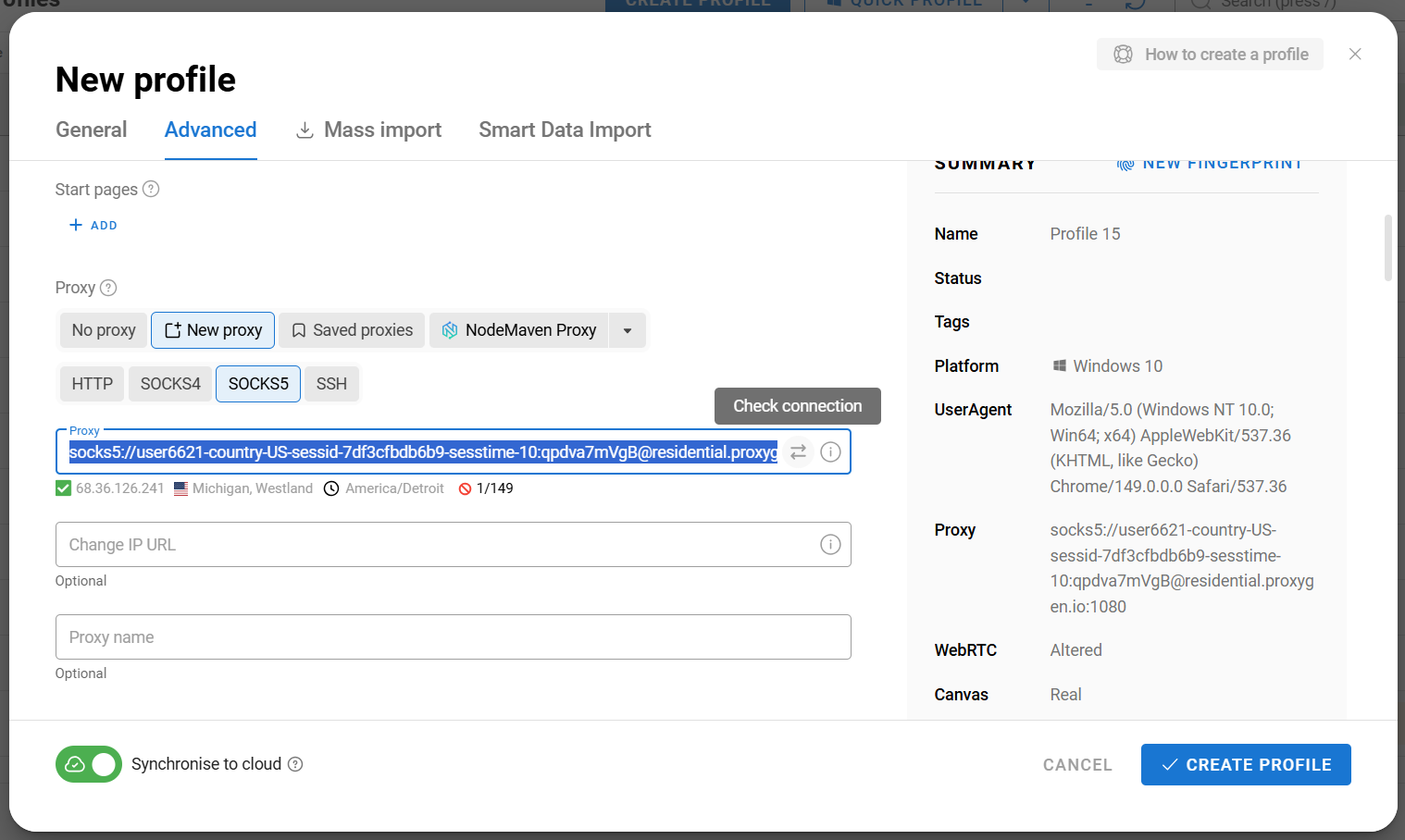
The browser will also check whether the proxy appears on any blacklists. In this example, a free public proxy is being used, which is why a warning about blacklist listings is displayed.
How to configure a browser profile?
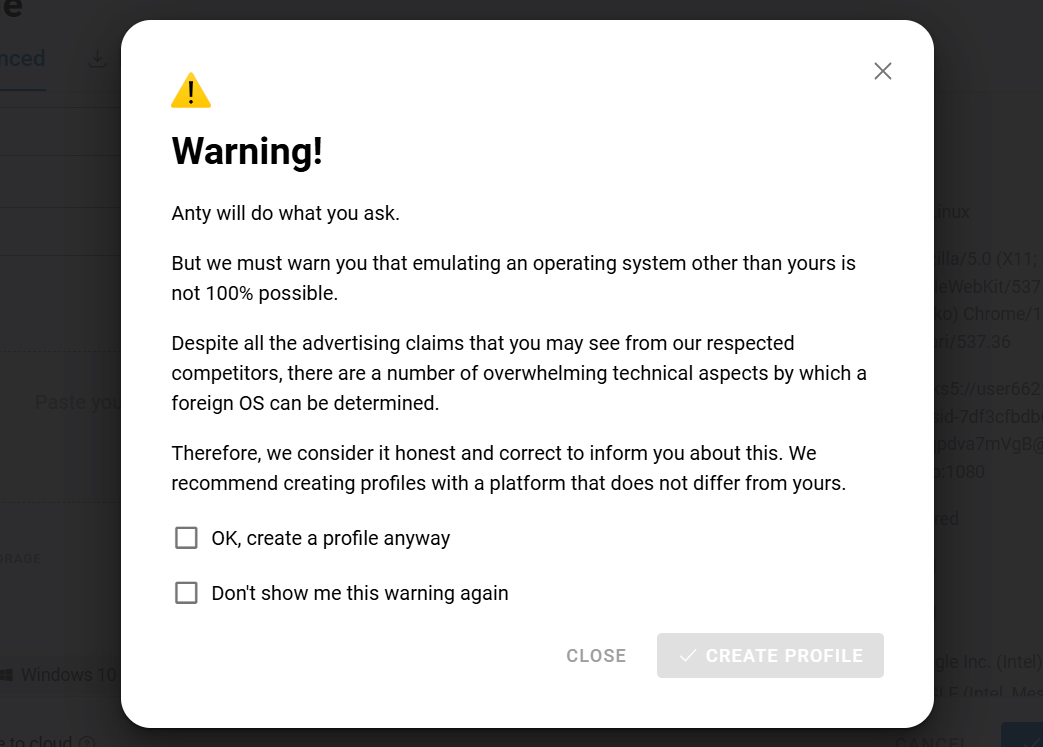
An important rule is to select the same operating system and OS version that you're actually using. For example, if your computer runs Windows 10, choose Windows 10 for the browser profile as well. Avoid emulating a different operating system.
Although Dolphin Anty can emulate different operating systems, doing so results in a less accurate browser fingerprint. If you try to create a profile with an OS different from your own, the browser will also display a warning.
You should also avoid working without cookies. Many platforms treat accounts with no cookies as suspicious. No matter how good your proxy or browser fingerprint is, a browser with no browsing history looks unusual. A typical user's browser almost always contains cookies accumulated through everyday browsing.
Checking a browser profile
Once the profile has been created, launch it and open the fingerprint checker at Pixelscan.net.
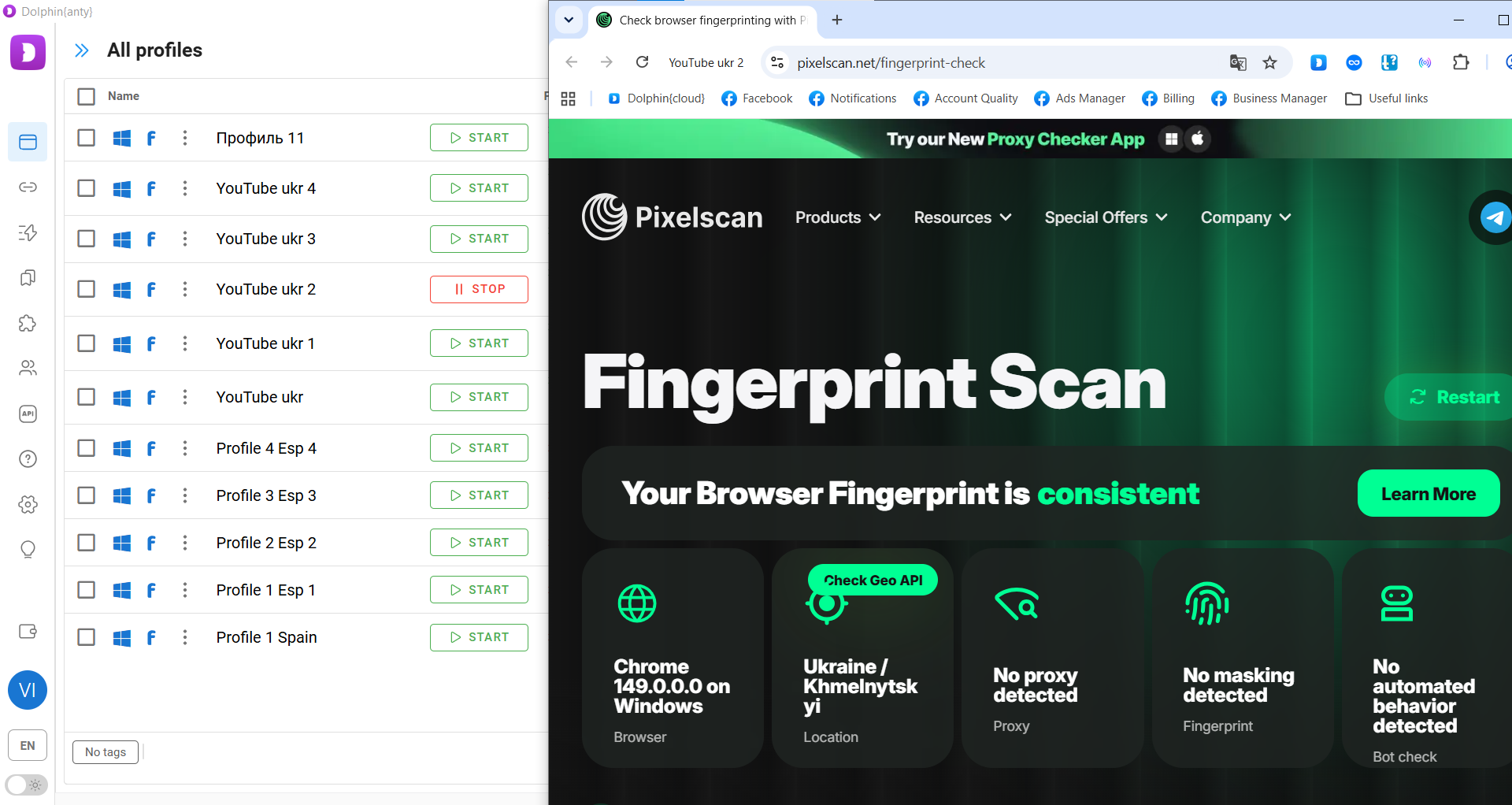
If your results match those shown in the screenshot, both your proxy and browser fingerprint have been configured correctly. If not, review your fingerprint settings and make sure you've selected the correct proxy protocol (HTTP, SOCKS, or SSH).
How to reduce the risk of account bans?
Remember to assign only one proxy port to each browser profile and always select the operating system that matches your actual device. If one of your accounts gets restricted or banned, stop using that proxy port and generate a new one instead.
Here are a few additional recommendations that can further reduce the risk of detection.
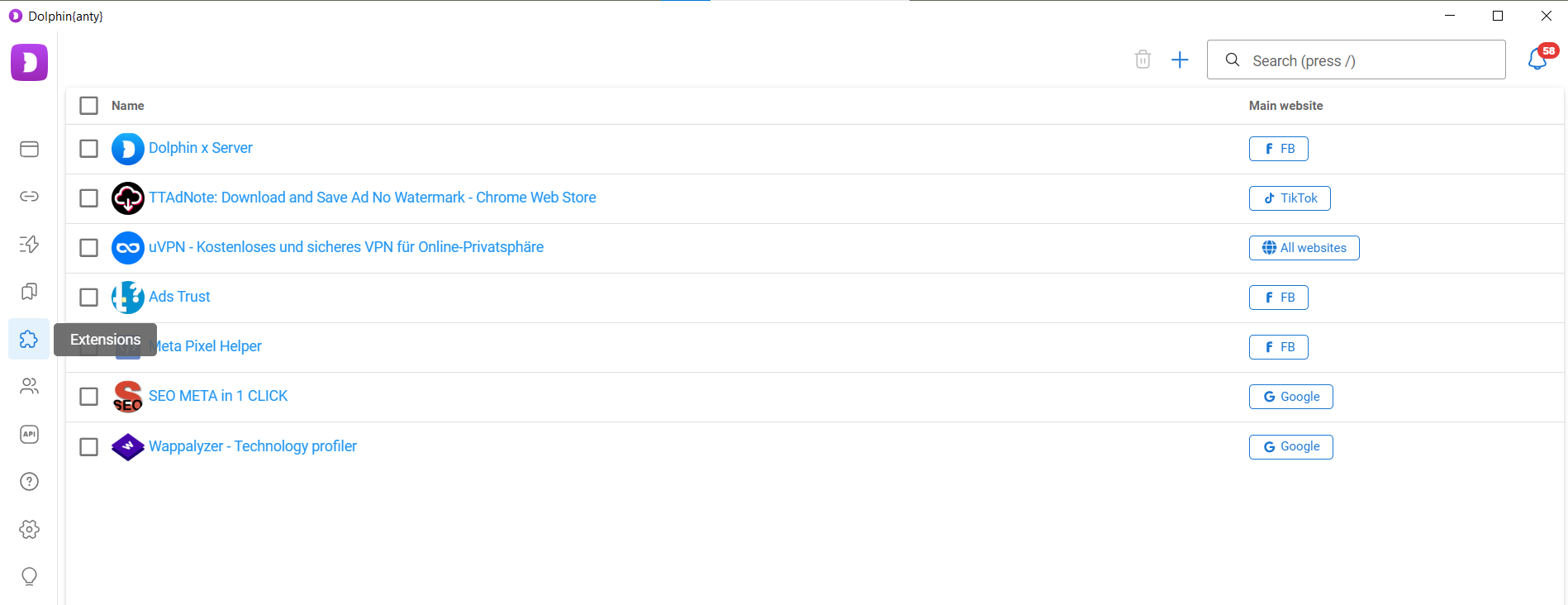
First, it's a good idea to install at least a few browser extensions in your profiles. Most real users don't browse with a completely clean browser, so extensions make your browser profile look more natural.
Dolphin Anty allows you to install extensions across multiple browser profiles automatically through the dedicated Extensions section.
Second, avoid opening all browser profiles at the same time. If you're running automation, configure it so that profiles launch one by one rather than simultaneously. This option is available in the Dolphin Anty settings.
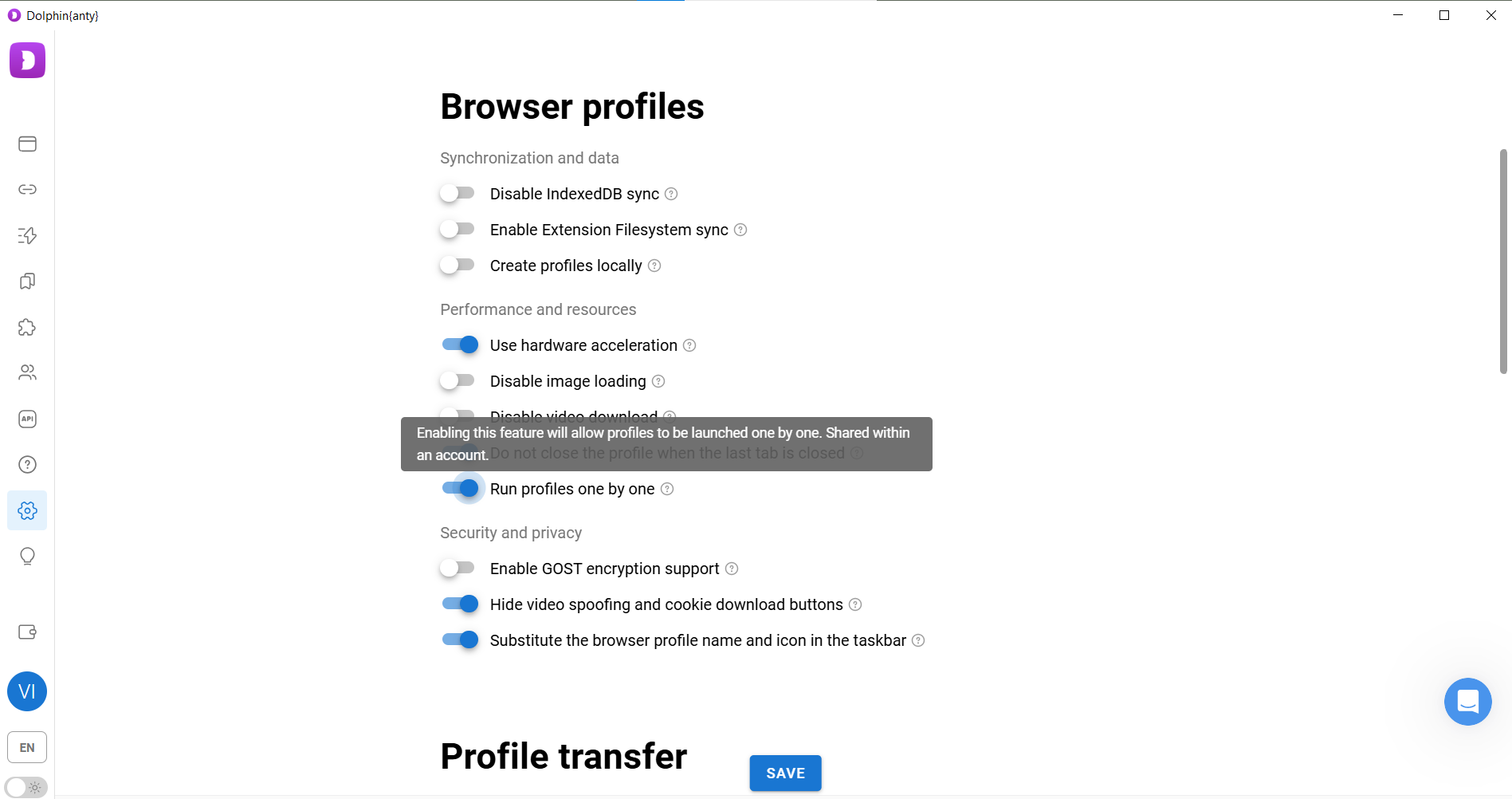
After enabling the option, don't forget to click "Save" to apply the changes.
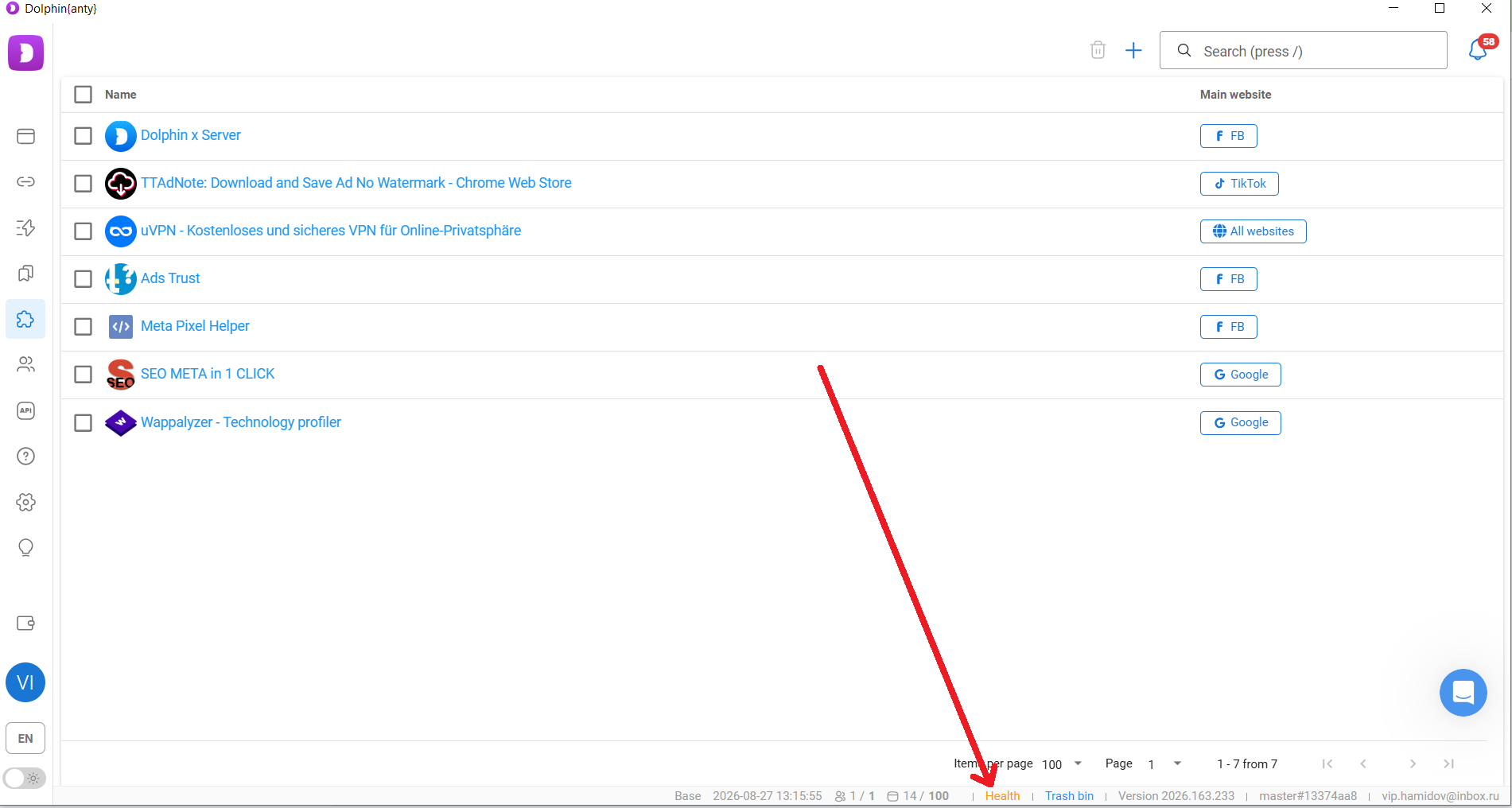
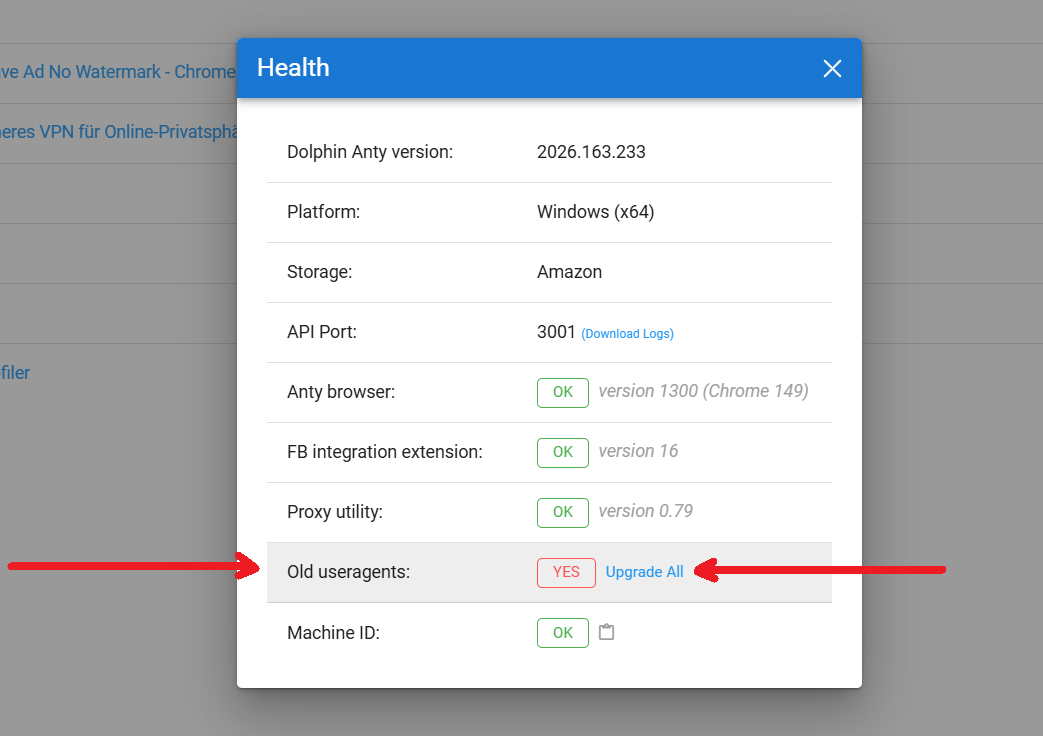
Third, keep Dolphin Anty up to date. Outdated user agents and browser fingerprint signatures are less likely to be trusted by anti-fraud systems.
To update fingerprint signatures, scroll to the bottom panel, open "Health", and install every available update.
Finally, use both ProxyGen and Dolphin Anty only for lawful purposes, such as multi-account management, web scraping, or data collection where permitted. Illegal activity may result in permanent suspension of your access to both the proxy service and the anti-detect browser.
Useful Dolphin Anty features
Dolphin Anty includes several features that make multi-account management faster and more convenient.
Bulk actions
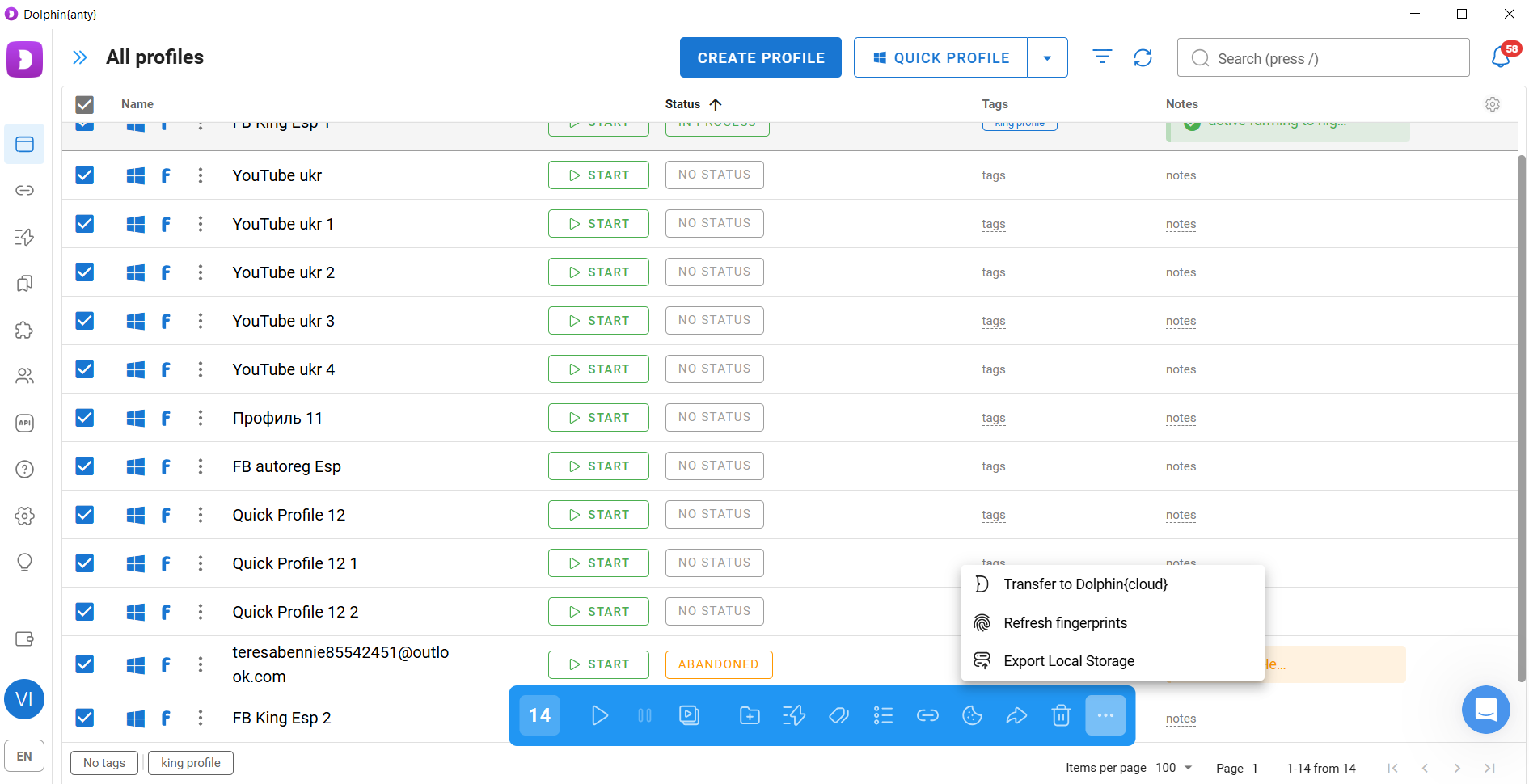
Select multiple browser profiles using the checkboxes. A control panel will appear at the bottom of the window, allowing you to launch, stop, delete, move profiles to local storage, change proxies, and perform other actions across multiple profiles at the same time.
Scenarios (scripts)
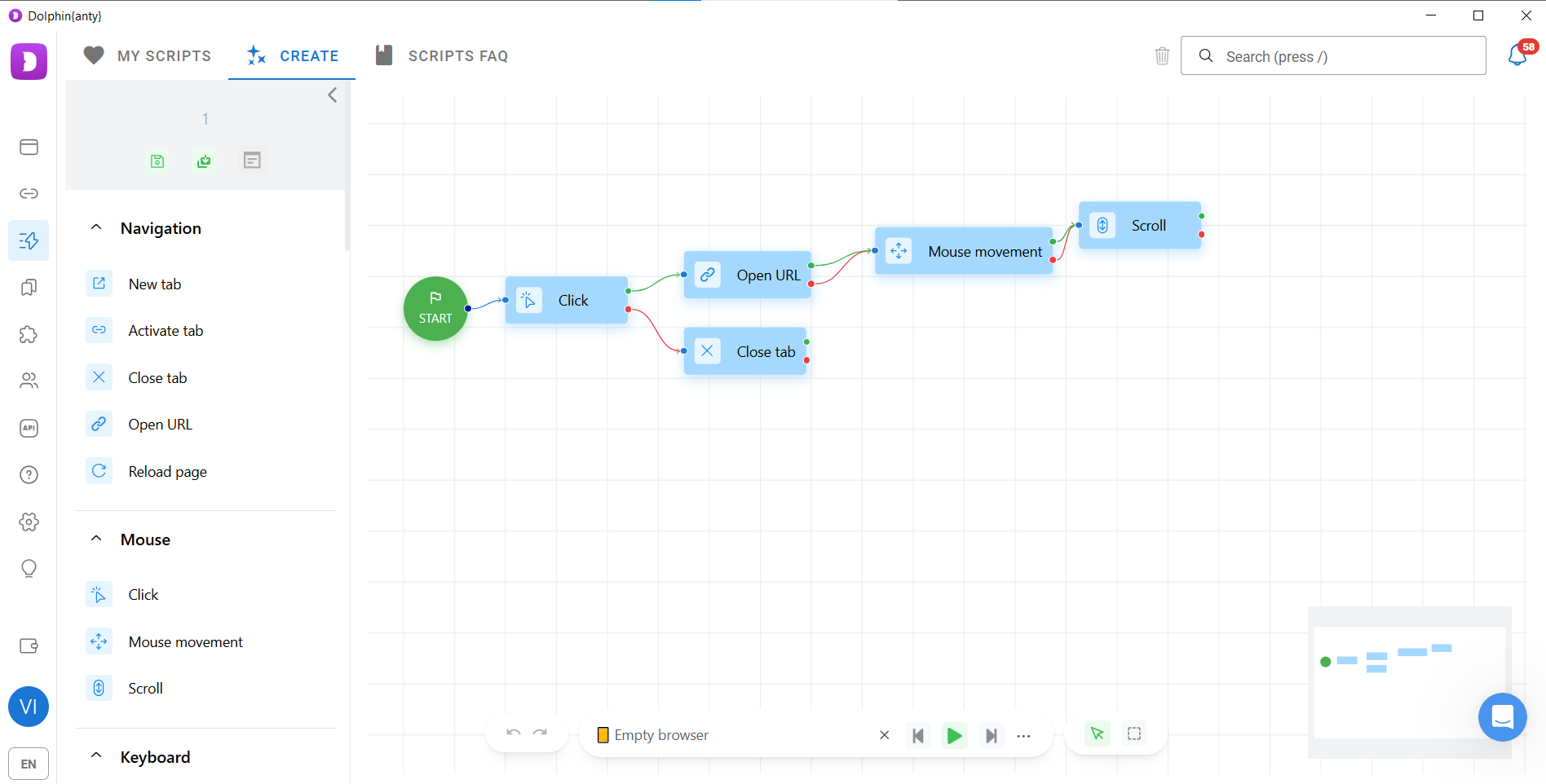
Scenarios let you automate routine tasks across multiple browser profiles without manual intervention. You can either create your own scenario by building a sequence of actions in the visual editor or run one that you've already created.
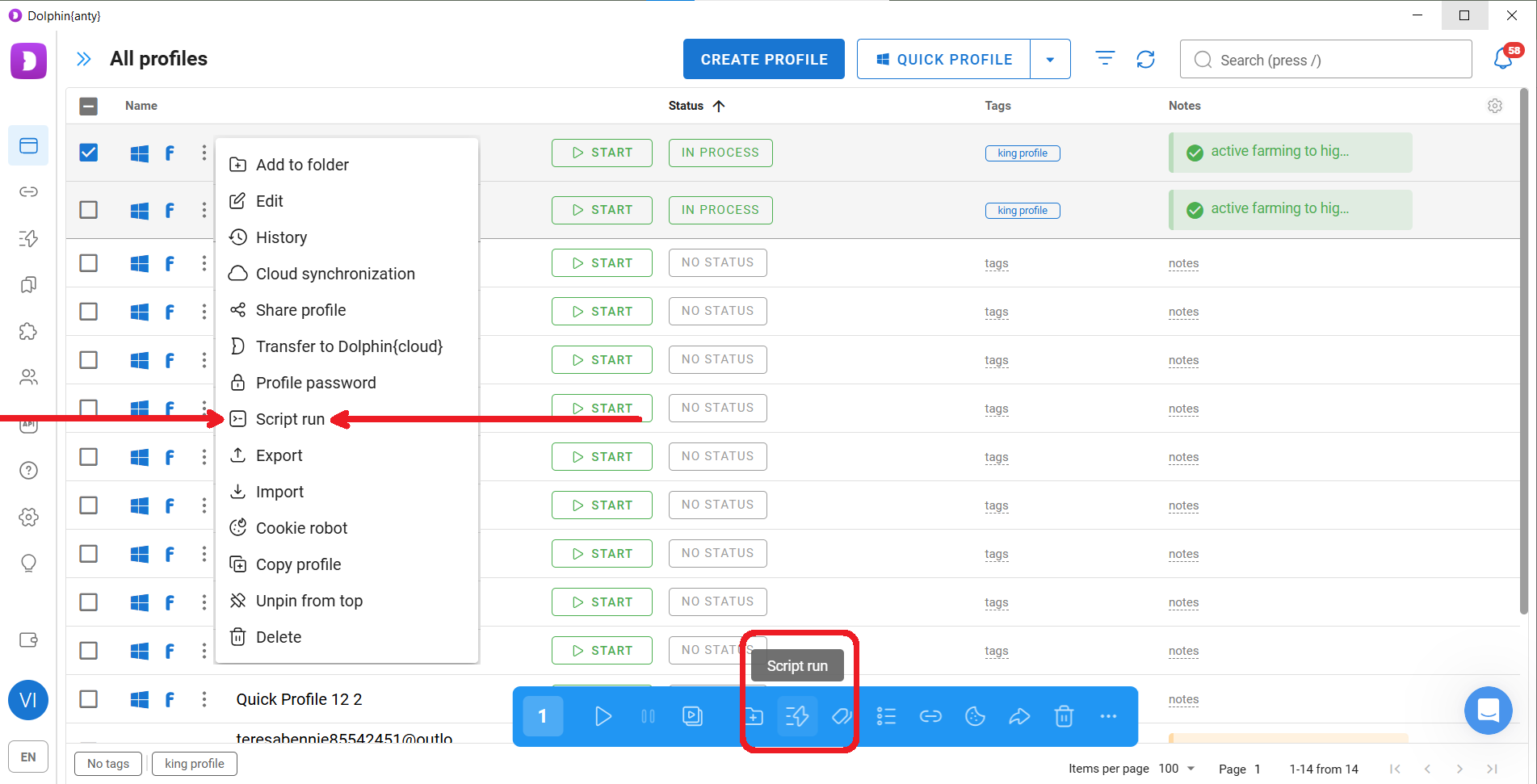
A scenario can be launched either from the menu of a single browser profile or through the Bulk actions panel.
Synchronizer
The Synchronizer allows you to scale actions that cannot be automated using scripts.
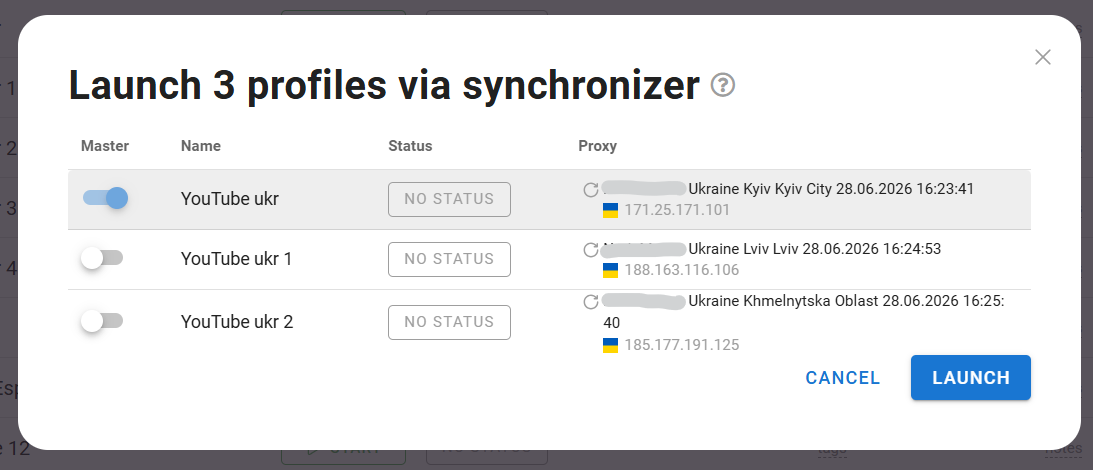
To use it, select multiple browser profiles and click "Start synchronizer" from the Bulk actions panel. Then choose one browser profile as the master profile and perform the required actions manually inside it.
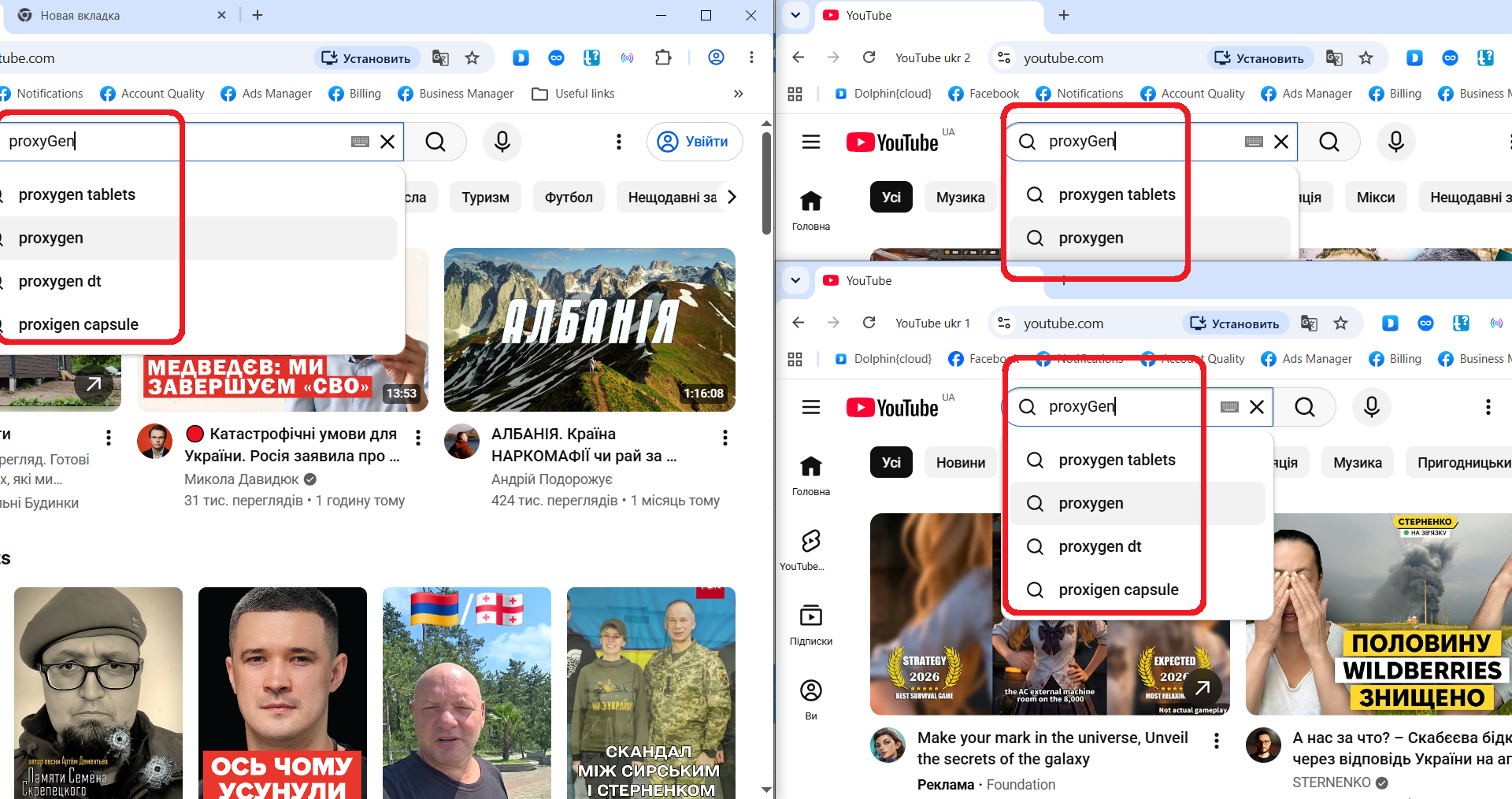
Every action you perform in the master profile will automatically be repeated in all the other selected profiles.
Copying browser profiles
If you've already created a browser profile with the settings you need, you can quickly duplicate it.
Open the profile menu by clicking the three dots, select "Copy", specify the number of copies you want to create, and make sure the "Randomize fingerprint" option remains enabled.
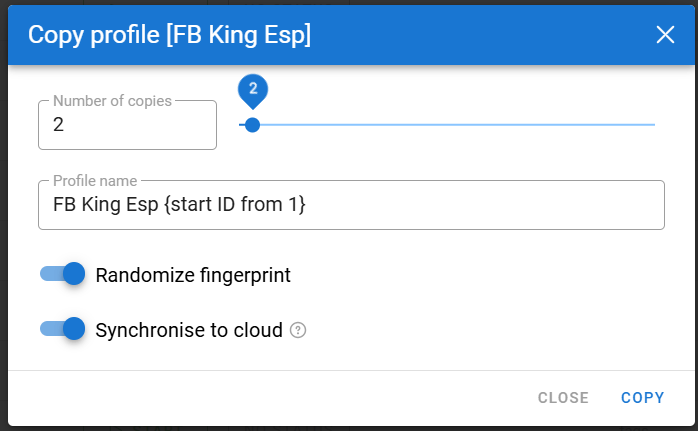
This ensures that each copy receives its own unique—although similar—browser fingerprint. Once the copies have been created, all that's left is to assign a proxy to each one.
Tags, statuses, and notes
These features primarily help you navigate large numbers of browser profiles more efficiently.
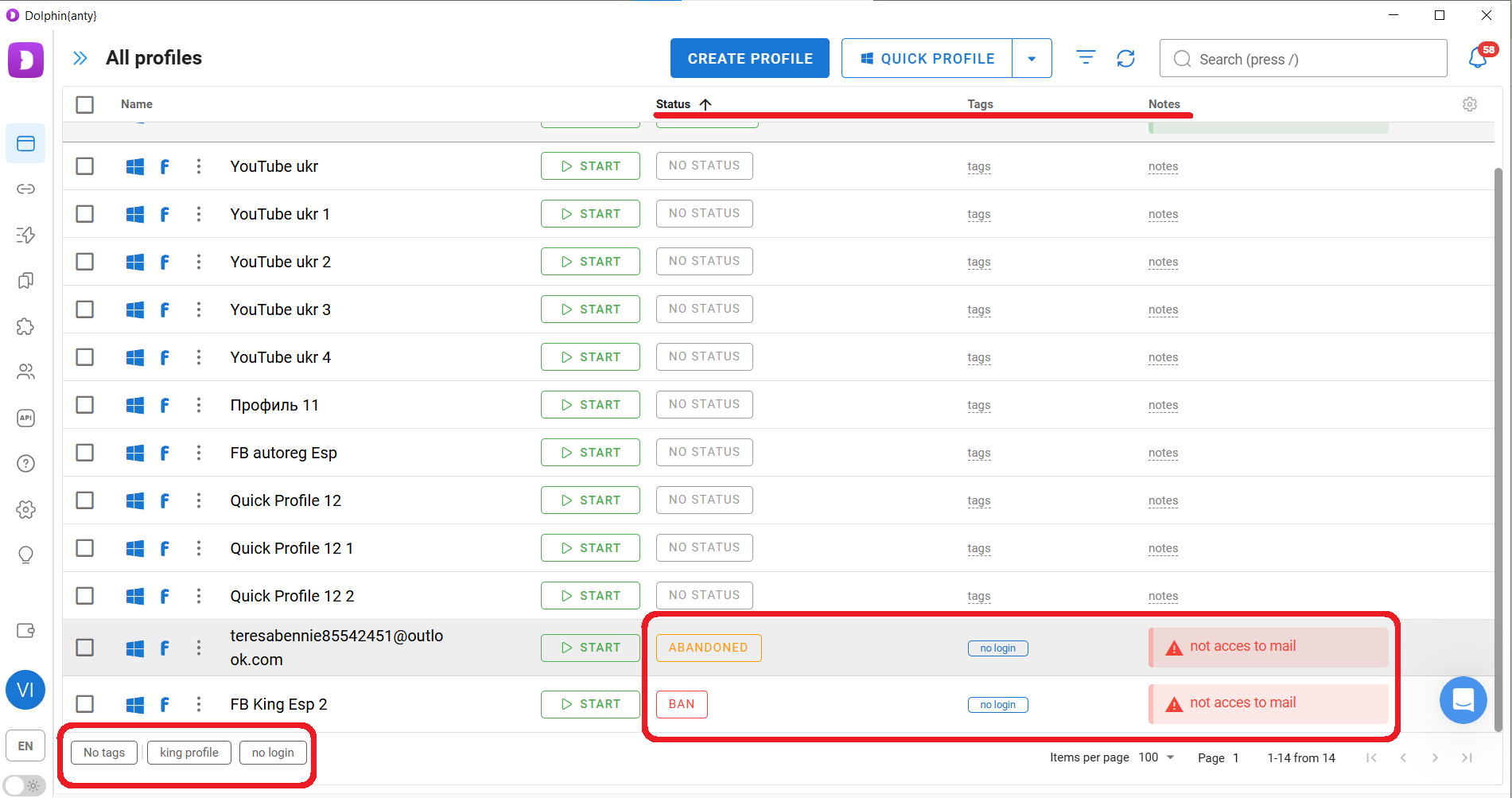
Tags allow you to organise browser profiles into groups. Assign different tags to different profiles, then filter your workspace with a single click to display only the profiles associated with a specific tag.
Statuses provide a quick visual way to identify the current state of each browser profile.
Notes let you save important information about a profile, so you don't have to reopen it or search for details every time you need them. They also help reduce the risk of accidentally launching the wrong profile.
Conclusion
Using ProxyGen together with Dolphin Anty gives you a reliable infrastructure for managing multiple accounts. More importantly, Dolphin Anty's built-in automation and management tools make routine work faster and easier.
The key is to use high-quality proxies, follow basic multi-accounting best practices, and take advantage of the browser's automation features. When configured correctly, Dolphin Anty helps streamline repetitive tasks, simplifies browser profile management, and makes it much easier to scale your workflow.
Don't forget to use promo code PROXYGEN20 when making your first payment for Dolphin Anty.